 and
and  outline symbols
|
For background information, see: About Customizing Worklists |
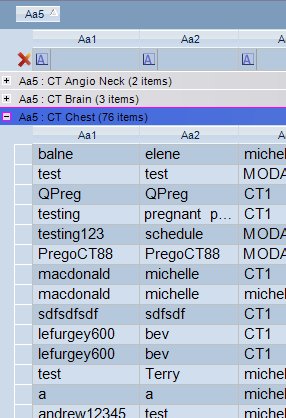
Grouping columns is similar to sorting a column; however it collapses the information to make the list more readable. For example, you can group by the Study column and see all the CT Chest exams. The column also displays the number of exams in each group. Outline symbols appear on the left side of the grouped rows. An outline button with a plus sign indicates that the group is compressed and shows only the total number of exams. An outline button with a minus indicates that the group is expanded.
To group patient information by column, right-click the column header and select Group Column.
To expand or collapse data in your outline, click the
and outline symbols
To view a demonstration:
Grouping Columns demonstration
Related Topics: |