 Filtering a column
|
For background information, see: About Worklists |
You can customize worklists to suit your department's requirements or personal preference.
For example, you can organize columns in a straight-line or stack them on top of each other using the drag-and-drop feature. You can change the order of columns by dragging them to their new location.
Worklist filters let you customize the information you want to display. Using filter criteria, you can display specific patient information in a worklist. For example, you can specify if you want your worklist to display only patients whose last names end with "ith" or all the patients whose accession number is less than 300,000.
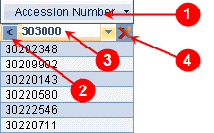
Worklists contain the following filtering operations components:
Column Heading
Operator – lets you define how to filter your column
Text entry field/drop-down list – lets you type in your text or value, or click the drop-down arrow and select filter criteria from the list
Clear criteria – lets you clear any criteria already filtered
You can group rows together in a worklist that have the same data.
Worklist columns can be moved around in the worklist, letting you customize what order you want columns to appear. You can also resize columns by dragging the line between two column headings or by double-clicking the line.
You can select which columns to show and hide in worklists. Each worklist is independent from other worklists.
You can sort a column in ascending (a to z) or descending (z to a) order.
To view information that is not near each other, you can split the window into multiple panes – separate frames that provide a different view of the same window. You can split the window into two or four panes, depending on how many different parts you want to see at once.
When you split a window, each pane contains an identical copy of the entire window. When you make a change to the window in one pane, the same change is applied to the other panes.
You can split a window horizontally, vertically, or both. When you want to compare different rows in the same window, use a horizontal split. To compare different columns in the same window, use a vertical split.
Condenses the information that appears on the screen by placing columns on top of each other. You can stack multiple columns. Stacking Columns
Showing or hiding the read-only area
The read-only area displays patient information. The information displayed can vary for each worklist.
After you have customized a worklist, you can use the MyView Toolbar to save it.
A view saves how your worklist is sorted, filtered, rearranged, and grouped. Once you have reorganized your worklist, you can save it to reuse later. You can save multiple views for each worklist.
Note: The view is only saved for the current worklist. To have unique views for each worklist, you must create and save the views separately.
Related Topics: |