|
For background information, see: About Customizing Worklists |
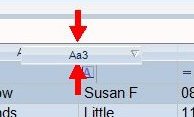
To move a column in a worklist, drag the column header to its new location. When two vertical red arrows appear between the column headings, release the mouse button.
To view a demonstration:
You can also resize columns by dragging the line between two column headings. Double-clicking the line between columns will automatically resize the column to the largest item in the column.
Related Topics: |